
Billing and Plans
Everything about your subscription lives in the web app under Team > Settings > Billing. Only Team Admins see it.
Your Trial
Section titled “Your Trial”Every self-serve account starts with a two-week free trial. A card is required at signup, but nothing is charged until the trial ends. At that point your plan upgrades to paid automatically. Cancel at any time before then and you are not charged. While the trial is running, the Billing page shows Trial Ends with the date.
What You Are Billed For
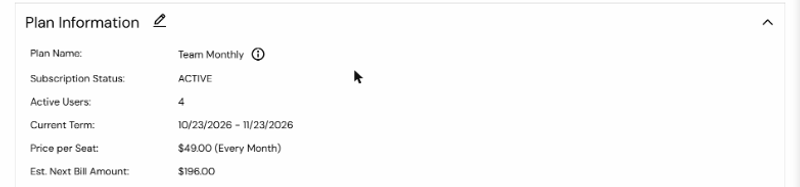
Section titled “What You Are Billed For”Your bill is the plan’s platform fee plus a price per seat, and a seat is a user. There is no separate seat count to manage: inviting a user adds a seat from your next bill date, and removing a user credits the unused part of their seat for the rest of the current period. The Billing page’s Plan Information section shows the plan name, active users, current term, price per seat, platform fee, and an estimated next bill amount.
Changing Your Plan
Section titled “Changing Your Plan”In Plan Information, click the edit icon, switch on Change plan, choose the new plan, tick the agreement box and Save. The change takes effect immediately: the unused part of your current period is credited and a new billing period starts today. During a trial, a plan change does not affect your dates.
Two things to know:
- You need a card on file to change plans. Add one under Payment Information first.
- The Solo plan is for one user. To move to it, reduce your team to one user first.
Payment Method and Receipts
Section titled “Payment Method and Receipts”Payment Information shows your payment type and card. Click the edit icon to update the card. If your account was paused for a failed payment, saving a new card reactivates it.
Account Ledger lists every charge and credit with its date, description, amount and whether it has been paid. A receipt is emailed to your team’s Billing Email (set under Settings > Information) each time a charge is made.
Invoiced and Reseller Accounts
Section titled “Invoiced and Reseller Accounts”Teams billed by invoice see Invoiced, Due on Receipt under Payment Information, and teams billed through a partner see Paid via that partner. Plan changes for these accounts go through us rather than the in-app form: email support@amalgam.me.
Cancelling
Section titled “Cancelling”See How to Cancel Your Account. Your subscription runs to the end of the current period and nothing further is charged.
