
How to Connect Amalgam to Maxio
Connect Maxio to Amalgam to run and export your Maxio reports into your spreadsheets, Claude or ChatGPT. Maxio connects with an API token that you create in Maxio and paste into Amalgam, along with the address of your Maxio account.
This integration is for the Maxio platform (formerly SaaSOptics). It does not connect to Maxio Advanced Billing (formerly Chargify).
What You Need
Section titled “What You Need”- A Maxio login with the Admin role. The Admin menu, where API tokens live, only appears for admins.
- API access switched on for your Maxio account. If you do not see API tokens in the Admin menu, ask your Maxio account owner to request it from support@maxio.com.
- An Amalgam account.
Create the Token in Maxio
Section titled “Create the Token in Maxio”- Log in to Maxio as an admin.
- Open Admin, then API Tokens (in older menus: Admin, Settings, API Tokens). If you see Core API and Maxio API tabs, use Core API.
- Enter a name such as
Amalgamand click Create API Token. - Copy the token.
Maxio’s guide: Get started with the Maxio Core API.
Find Your Account URL
Section titled “Find Your Account URL”Look at the address bar when you are logged in to Maxio. It looks like https://yourcompany.saasoptics.com/your-account-id/so. Your Account URL is everything up to and including the account ID, without the /so at the end: https://yourcompany.saasoptics.com/your-account-id.
Connect Maxio
Section titled “Connect Maxio”- Log in at app.amalgam.me.
- Click New Integration and choose Maxio. You can type the name in the search box to find it.
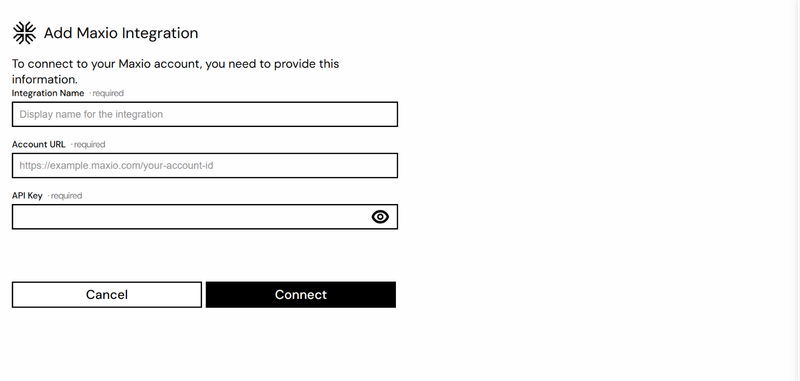
- Enter an Integration Name. This is only the display name in Amalgam.
- Paste your Account URL and API Key and click Connect.

What You Can Pull
Section titled “What You Can Pull”Maxio is a read-only integration. The Report Exports report (beta) runs and exports any report defined in your Maxio account, except graphical ones. See Reports by Provider.
Troubleshooting
Section titled “Troubleshooting”- “Invalid api key or url address”: check the Account URL includes your account ID and has no
/soor other path after it, and that the token was copied in full. - Tokens belong to the user who created them. If that person leaves, create a new token and paste it in with Edit on the integration.