
How to Schedule a Report with Routines
A routine picks one report from one integration, fixes its parameters, then runs on a schedule and emails the file to whoever needs it, or saves it to a shared drive. Set it up once and the month-end P&L, the weekly AR aging, or the daily bank transactions arrive on their own.
Who Can Use Routines
Section titled “Who Can Use Routines”Routines are turned on per user. If you see Routines under Automation in the left menu of the web app, you have it. If you do not, email support@amalgam.me and we will enable it for you or your whole team.
Each routine belongs to the person who created it. Teammates cannot see, edit or run your routines, so a report two people need is best set up by one of them with the other as a recipient.
Create a Routine
Section titled “Create a Routine”Open Routines and click New Routine. The form has five parts.
1. Data
Section titled “1. Data”Choose the Integration and then the Report. Only reports for that integration’s system are offered.
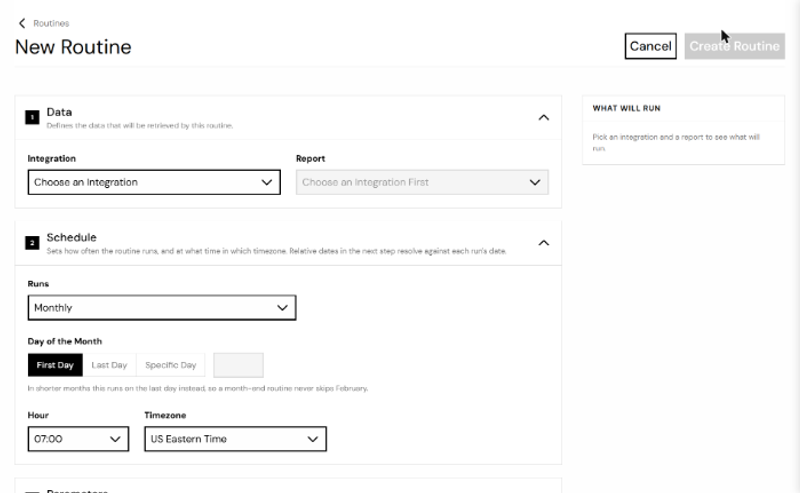
2. Schedule
Section titled “2. Schedule”Runs: Daily, Weekly, Monthly, or Every N Days. Weekly asks for the day of the week. Monthly asks for the first day, the last day, or a specific day of the month; a routine set for the 31st runs on the last day of shorter months, so a month-end routine never skips February. Pick the Hour and check the Timezone, which is detected from your browser.
3. Parameters
Section titled “3. Parameters”Most reports take dates or other options. Parameter Mode is Relative or Fixed. Relative dates are worked out fresh on every run: “end of last month” is always the month before the run date. The form shows what each relative date resolves to at the next run. Fixed values run the report the same way every time.
4. Delivery
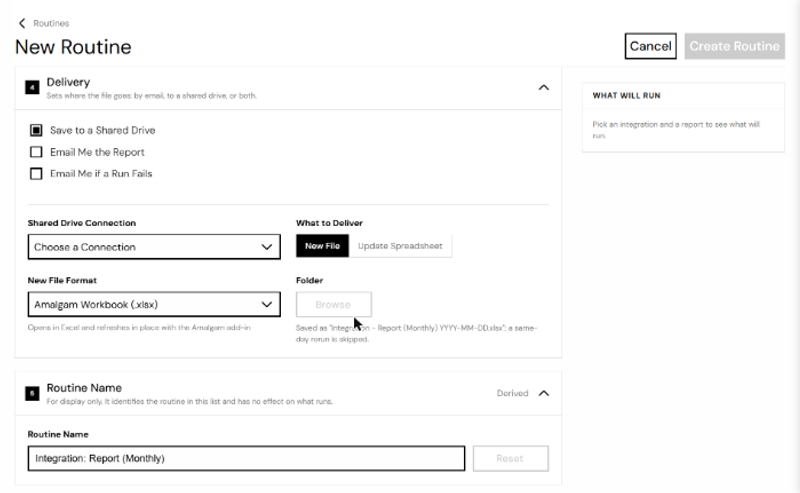
Section titled “4. Delivery”Tick at least one of:
- Email Me the Report: add up to 50 recipients. The Email Subject Line defaults to the routine name; the Insert buttons add the routine name, report name, integration name or run date. Attachment Format is Amalgam Workbook (.xlsx), which opens in Excel and refreshes in place with the Amalgam add-in, or Data Only (.csv), the report data alone.
- Save to a Shared Drive: see below.
- Email Me if a Run Fails: a note to you, not the recipients, when a run does not complete.
5. Routine Name
Section titled “5. Routine Name”Filled in automatically as “Integration: Report (Cadence)”. Change it if you like; it only identifies the routine in your list.
The What Will Run panel on the right shows the next run time, the parameters it will use, and where the file goes. Click Create Routine, then Send a Test Now to run it immediately. A test is a real run and does not change the schedule.
Saving to a Shared Drive
Section titled “Saving to a Shared Drive”First connect SharePoint or Google Drive from the Integrations page, the same way as any other integration. Then in the routine, pick that connection under Shared Drive Connection and choose what to deliver:
- New File: pick a folder (browse your SharePoint site, or paste the folder’s address from your browser and click Check). Each run saves a new file named “Routine Name Date”. If a routine runs twice in one day, the second run is skipped.
- Update Excel or Update Google Sheet: pick an existing workbook and a Tab. Each run replaces that tab’s contents. Choose Existing Amalgam Report Tab if the tab is an Amalgam report sheet and you want its columns A to O left as they are.
Excel files stored in Google Drive cannot be updated in place; save a new file instead.
After It Runs
Section titled “After It Runs”Each routine’s page shows Run History: when it ran, the parameters used, how many rows came back, and the status. Files are not kept on Amalgam’s side; the email or the shared drive is the copy.
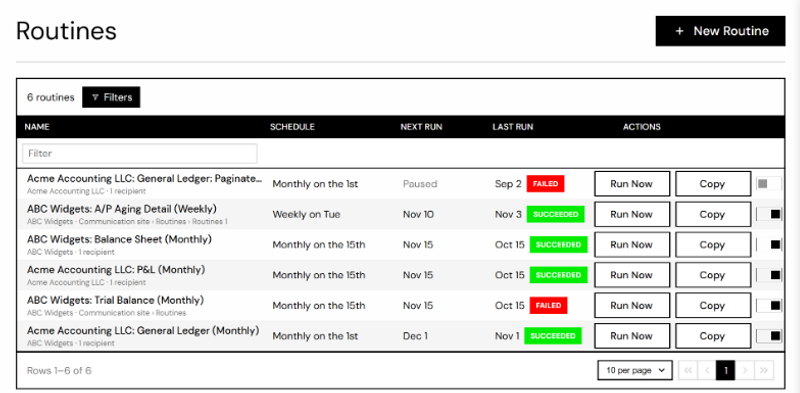
From the list you can Run Now, Copy a routine as the starting point for another, or Pause and Resume it. Deleting a routine stops future runs and removes its history.
When a Run Fails
Section titled “When a Run Fails”The run shows as Failed with a plain reason, such as the integration needing to be reconnected. If you ticked Email Me if a Run Fails, the same reason arrives by email. Nothing is sent to the recipients. The routine tries again at its next scheduled time; fix the cause (reconnect the integration, for example) and it recovers on its own. If one delivery works and another does not, the run shows Delivered With Issues and the email tells you which one failed.