
How to Connect Amalgam to Airtable
Connect Airtable to Amalgam to sync whole Airtable tables into your spreadsheets, Claude or ChatGPT. Airtable connects with a personal access token that you create in Airtable, plus the ID of the workspace that holds your base.
What You Need
Section titled “What You Need”- An Airtable login that can see the base you want to connect. Any plan works.
- An Amalgam account.
A token can never do more than the user who created it. If you are a read-only collaborator on the base, the token is read-only too.
Create the Token in Airtable
Section titled “Create the Token in Airtable”- Go to airtable.com/create/tokens. You can also reach it from your account menu under Developer hub, then Personal access tokens.
- Click Create token and name it
Amalgam. - Click Add a scope and add these three:
data.records:read,data.records:writeandschema.bases:read. - Under Access, click Add a base and pick the base, or pick the whole workspace so all its current and future bases are covered.
- Click Create token and copy it. Airtable shows the token once; if you lose it, regenerate it.
Airtable’s guide: Creating personal access tokens.
Find Your Workspace ID
Section titled “Find Your Workspace ID”- Go to airtable.com/workspaces and click the workspace that holds your base.
- The address bar changes to
airtable.com/workspaces/wspXXXXXXXXXXXXXX. The part starting withwspis your Workspace ID.
Airtable’s guide: Finding Airtable IDs.
Connect Airtable
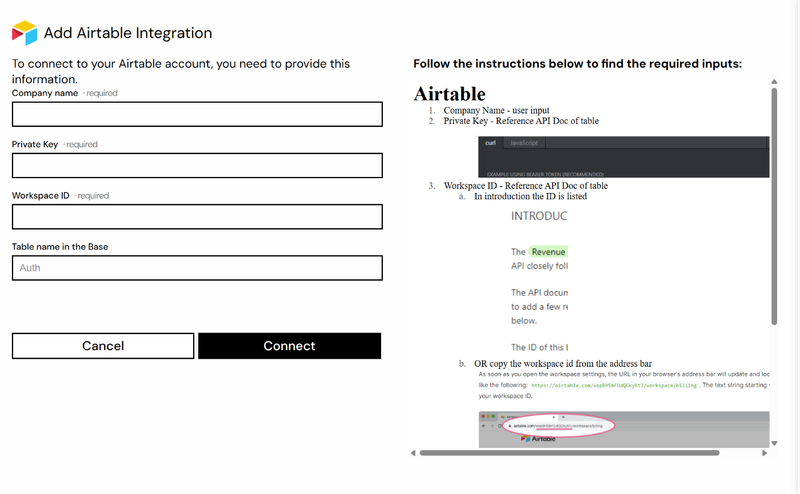
Section titled “Connect Airtable”- Log in at app.amalgam.me.
- Click New Integration and choose Airtable. You can type the name in the search box to find it.
- Enter a Company name. This is only the display name in Amalgam.
- Paste the token into Private Key and the workspace ID into Workspace ID.
- Optionally enter the Table name in the Base you want to work with.
- Click Connect.

What You Can Pull
Section titled “What You Can Pull”The Airtable Query report syncs an entire Airtable table into your sheet. See Reports by Provider.
Troubleshooting
Section titled “Troubleshooting”- Airtable returns a permissions error: the token does not have the base added under Access. Open the token at airtable.com/create/tokens, add the base or workspace, and try again. The scopes alone are not enough.
- Tokens do not expire unless your Airtable enterprise admin has set a limit.