
How to Connect Amalgam to QuickBooks Desktop
Connect QuickBooks Desktop to Amalgam to pull your P&L, balance sheet, trial balance, sales, purchases and inventory reports into your spreadsheets, Claude or ChatGPT. QuickBooks Desktop runs on your own computer, so the connection works through Intuit’s Web Connector, a small program that runs next to QuickBooks and talks to Amalgam. Setup takes about fifteen minutes. The steps below are for Windows.
What You Need
Section titled “What You Need”- QuickBooks Desktop installed on a Windows computer, with the company file you want to connect.
- The QuickBooks Admin login for that company file.
- QuickBooks Web Connector. Recent versions of QuickBooks Desktop include it. If it is missing, download it from Intuit: Set up QuickBooks Web Connector.
- Your Amalgam username and password.
Find the Path to Your Company File
Section titled “Find the Path to Your Company File”- Open the company in QuickBooks Desktop.
- Press F2 (or Ctrl+1). The Product Information window opens.
- Under File Information, copy the location. It ends in
.qbw, for exampleC:\Users\Public\Documents\Intuit\QuickBooks\Company Files\ABC Widgets.qbw.
You can also find the file in Windows Explorer, right-click it, choose Copy as path, and remove the quotes when you paste it.
Connect in Amalgam
Section titled “Connect in Amalgam”- Log in at app.amalgam.me.
- Click New Integration and choose QuickBooks Desktop. You can type the name in the search box to find it.
- If the form asks you to confirm your Amalgam username, enter the name shown in the top right of the Amalgam toolbar.
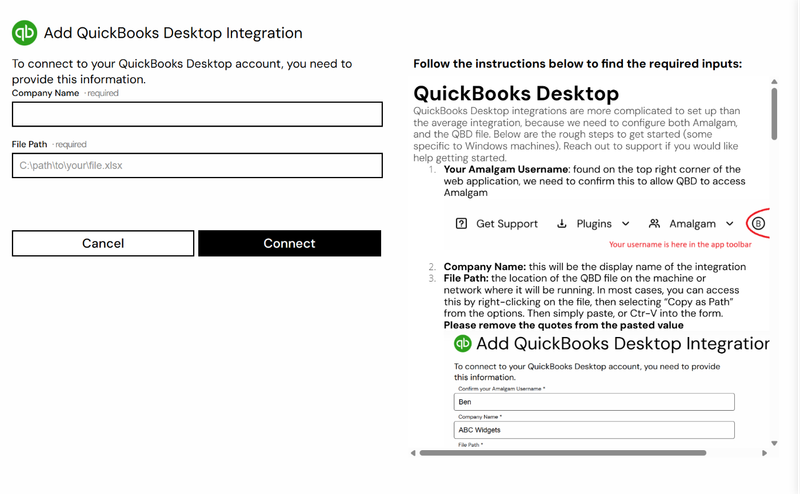
- Enter a Company Name (the display name in Amalgam) and the File Path you copied, then click Connect.
- Amalgam downloads a file ending in
.qwc. Save it somewhere easy to find, such as the Desktop of the QuickBooks computer. If your browser shows the file contents instead of downloading, paste them into Notepad and save the file asamalgam.qwcwith Save as type set to All files.

Add Amalgam to the Web Connector
Section titled “Add Amalgam to the Web Connector”- On the QuickBooks computer, sign in to QuickBooks as the Admin user, in single-user mode (File, then Switch to Single-user Mode), with the company file open.
- Open the Web Connector: in QuickBooks go to File, then App Management, then Update Web Services (in QuickBooks 2019 and 2020: File, then Update Web Services). You can also open Web Connector from the Start menu.
- Click Add an Application, pick the
.qwcfile, and click Open. - QuickBooks shows the Application Certificate window. Choose Yes, always; allow access even if QuickBooks is not running, click Continue, then Done.
- Back in the Web Connector, type your Amalgam password in the Password column of the Amalgam row, press Tab, and click Yes to save it. If the field will not take input, untick Auto-Run for a moment, enter the password, then tick it again.
- Tick the Amalgam row and click Update Selected. The first run confirms the connection.
Intuit’s guide: Set up QuickBooks Web Connector.
From now on the Web Connector checks in with Amalgam every 20 seconds and runs any report you request. QuickBooks and the Web Connector must both be running, with that company file open, whenever you pull data.
What You Can Pull
Section titled “What You Can Pull”QuickBooks Desktop is a read-only integration. Reports include P&L (plus by class, by job, and prior-year and year-to-date comparisons), Balance Sheet (plus by class, summary and prior-year comparison), Trial Balance, Customer and Vendor Balance Summaries, Sales and Purchases summaries, Sales Tax reports and Inventory reports. See Reports by Provider.
Troubleshooting
Section titled “Troubleshooting”- Reports never finish: the Web Connector is not running, or QuickBooks does not have the company file open. Open both and click Update Selected. Use Hide, not Exit, to keep the Web Connector running in the background.
- Error QBWC1039: more than one copy of QuickBooks is open, or the same
.qwcwas added twice. Close extra copies and remove the duplicate application. Intuit’s guide: Fix error QBWC1039. - Error QBWC1048 or a certificate error: remove Amalgam from the Web Connector, download a fresh
.qwcfrom Amalgam, and add it again. - Password rejected: the Web Connector password is your Amalgam password. If you changed it in Amalgam, update it in the Web Connector too.
- Intuit’s full error list: Get help with common Web Connector errors.