
How to Connect Amalgam to ReCharge
Connect ReCharge to Amalgam to pull subscription customer data into your spreadsheets, Claude or ChatGPT. ReCharge connects with an API token that you create in the ReCharge merchant portal and paste into Amalgam.
What You Need
Section titled “What You Need”- The ReCharge store owner login, or a staff login that the owner has given the API tokens permission.
- The store owner must have accepted ReCharge’s API terms of service. ReCharge asks for this the first time anyone opens the API tokens page.
- An Amalgam account.
Create the Token in ReCharge
Section titled “Create the Token in ReCharge”- Log in to the ReCharge merchant portal.
- Go to Tools & apps, then API tokens.
- Click Create an API token.
- Under Details, enter a name such as
Amalgamand a contact email. - Set Read access on Customers, Orders, Subscriptions and Charges. Leave the other permissions at No access. Amalgam only reads from ReCharge.
- Click Save and copy the token.
ReCharge’s guide: Recharge API.
Connect ReCharge
Section titled “Connect ReCharge”- Log in at app.amalgam.me.
- Click New Integration and choose ReCharge. You can type the name in the search box to find it.
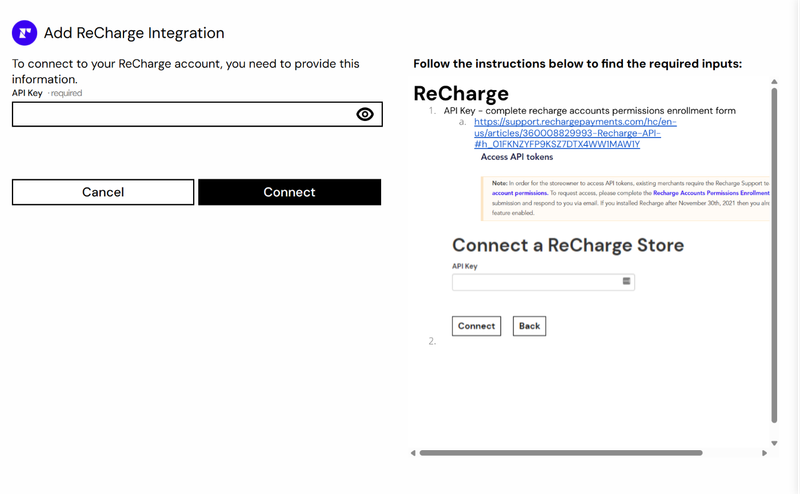
- Paste the token into API Key and click Connect.

What You Can Pull
Section titled “What You Can Pull”ReCharge is a read-only integration. The Customer Report Recharge pulls detailed customer data for the period you choose. See Reports by Provider.
Troubleshooting
Section titled “Troubleshooting”- You cannot see the API tokens page: only the store owner can by default. Ask the owner to open it, or to grant your staff account the API tokens permission.
- Connect fails: make sure you created an admin API token, not a storefront token, and that the four permissions above are set to Read access.