
How to Connect Amalgam to Amazon Seller
Connect Amazon Seller Central to Amalgam to pull your settlement reports and transactions into your spreadsheets, Claude or ChatGPT. Amazon Seller connects by signing in to Seller Central and authorizing Amalgam. There is nothing to configure on the Amazon side.
What You Need
Section titled “What You Need”- The primary user login for your Seller Central account, or a secondary user the primary user has given admin-level permissions.
- An Amalgam account.
Connect Amazon Seller
Section titled “Connect Amazon Seller”- Log in at app.amalgam.me.
- Click New Integration and choose Amazon Seller. You can type the name in the search box to find it.
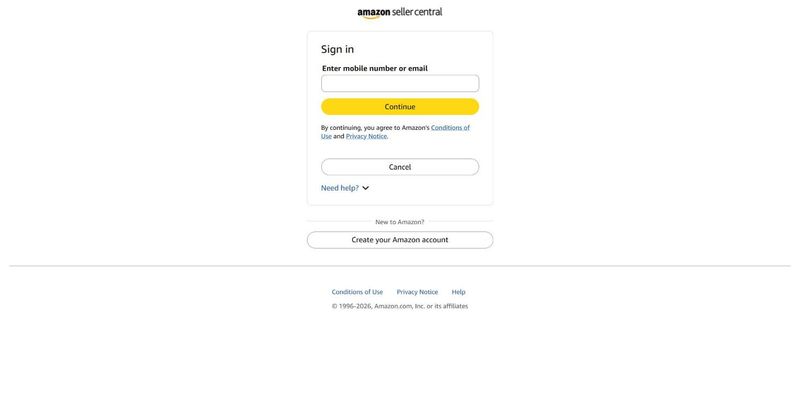
- Amalgam sends you to Amazon’s sign-in page. Sign in with your Seller Central login, including the one-time code if asked.
- If you sell in more than one region, make sure you are signed in to the Seller Central for the region you want to connect.
- Review the data Amalgam asks to read, tick the confirmation box, and click Confirm. Amazon sends you back to Amalgam with the integration ready to use.

What You Can Pull
Section titled “What You Can Pull”Amazon Seller is a read-only integration. Reports include the Settlement Report and Transactions View (beta). Amazon only keeps settlement reports for 90 days, so pull them regularly. See Reports by Provider.
Troubleshooting
Section titled “Troubleshooting”- Amazon says you are not authorized: your user is not the primary user and does not have the permissions to authorize apps. Ask the primary user to connect.
- The integration stops working after a year: Amazon app authorizations expire every 365 days. Open the integration in Amalgam and reconnect, or renew it in Seller Central under Apps and Services, then Manage Your Apps, with Re-authorize.
- Disconnecting from the Amazon side: same page, choose Disable Authorization next to Amalgam.
Amazon’s guide: Authorizing applications.