
How to Connect Amalgam to QuickBooks Online
Connect QuickBooks Online to Amalgam to pull your financial statements, general ledger, aging and transaction reports into your spreadsheets, Claude or ChatGPT, and to create and edit invoices, bills, journal entries and more from a sheet. QuickBooks Online connects by signing in to Intuit and approving the connection. There is nothing to configure on the QuickBooks side.
What You Need
Section titled “What You Need”- A QuickBooks Online login with the Primary Admin or Company Admin role for the company. Standard users cannot connect apps. If you are an accountant connecting a client, you must be a Firm owner in QuickBooks Online Accountant.
- An Amalgam account.
Connect QuickBooks Online
Section titled “Connect QuickBooks Online”- Log in at app.amalgam.me.
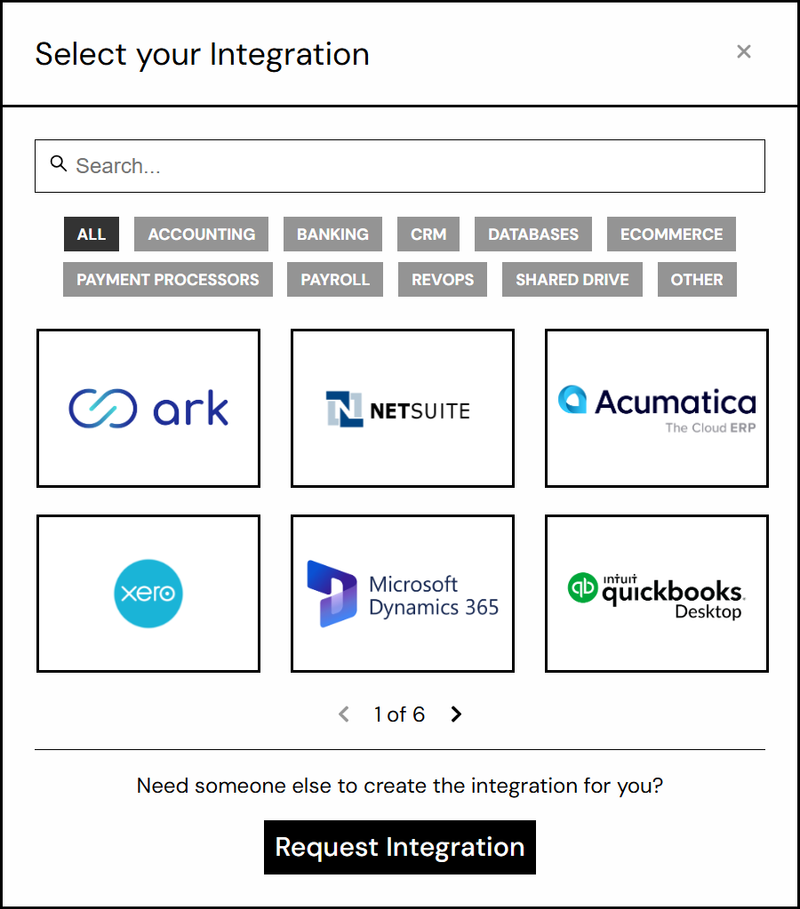
- Click New Integration and choose QuickBooks Online. You can type the name in the search box to find it.
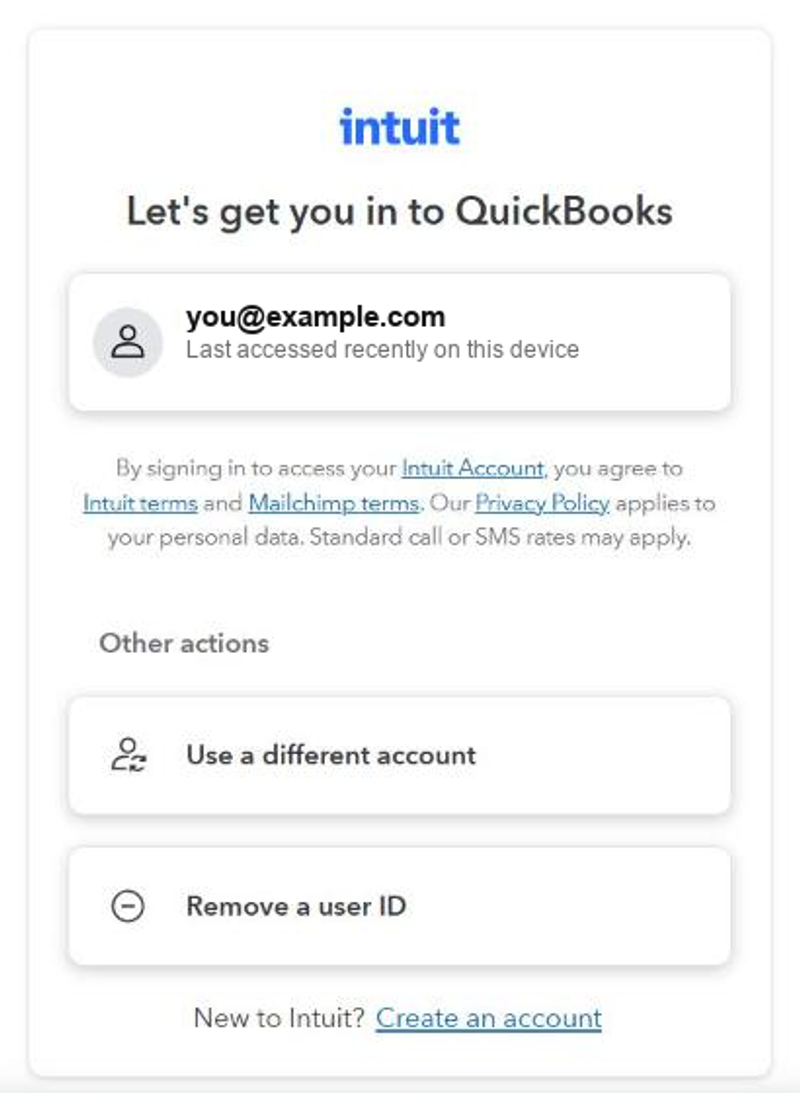
- Amalgam sends you to Intuit’s sign-in page. Sign in with your QuickBooks login.
- If your login has more than one company, pick the company to connect.
- Review the access request and click Connect. Intuit sends you back to Amalgam with the integration ready to use.

Each QuickBooks company is its own integration. If you work with several companies, repeat the steps for each one.
What You Can Pull
Section titled “What You Can Pull”QuickBooks Online has the widest coverage in Amalgam. Reports include P&L, Balance Sheet, Cash Flow Statement, Trial Balance and General Ledger, AP and AR Aging, customer and vendor balances, sales reports, transaction lists and inventory valuation. Resources let you read and write Invoices, Bills, Customers, Vendors, Journal Entries, Expenses, Purchase Orders and Accounts. See Reports by Provider and Resources Introduction.
Troubleshooting
Section titled “Troubleshooting”- “You don’t have permission to connect apps”: your QuickBooks user is not an admin for that company. Ask the Primary Admin to connect it, or to make you a Company Admin.
- The company you want is not listed: you are signed in to an Intuit account that does not have access to that company. Click Use a different account on the Intuit sign-in page.
- The integration shows as expired: open the integration in Amalgam and reconnect. You go through the same Intuit sign-in again.
- Disconnecting from the QuickBooks side: in QuickBooks Online go to Integrations, then Manage integrations (older menus: Apps, then My apps), find Amalgam and choose Disconnect.