
How to Connect Amalgam to Xero
Connect Xero to Amalgam to pull your P&L, balance sheet, general ledger and aging reports into your spreadsheets, Claude or ChatGPT, and to create and edit invoices and journal entries from a sheet. Xero connects by signing in to Xero and approving the connection. There is nothing to configure on the Xero side.
What You Need
Section titled “What You Need”- A Xero login with the Standard, Adviser or Administrator role in the organisation, with the Connected Apps permission. Invoice-only and read-only users cannot connect apps.
- An Amalgam account.
Connect Xero
Section titled “Connect Xero”- Log in at app.amalgam.me.
- Click New Integration and choose Xero. You can type the name in the search box to find it.
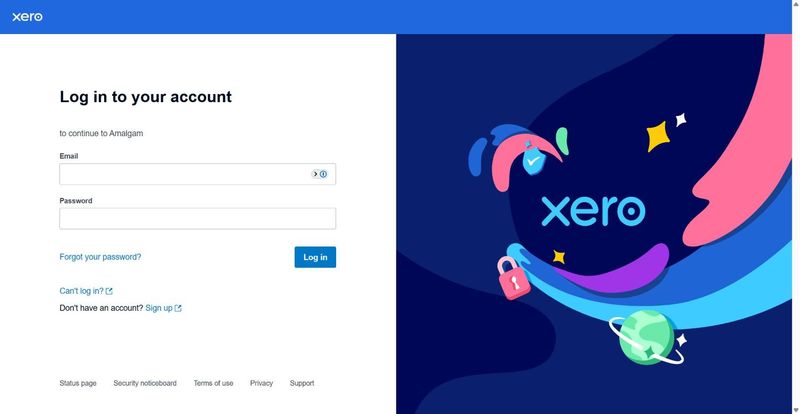
- Amalgam sends you to Xero’s sign-in page. Sign in with your Xero login.
- On the consent screen, pick the organisation to connect from the dropdown and click Allow access. Xero sends you back to Amalgam with the integration ready to use.

Each Xero organisation is its own integration. If you work with several, repeat the steps for each one.
What You Can Pull
Section titled “What You Can Pull”Reports include P&L, Balance Sheet, Cash Flow Statement, General Ledger, Account Transactions, Transaction Journals and AR Aging by contact, detail and summary. Resources let you read and write Invoices and Journal Entries. See Reports by Provider and Resources Introduction.
Troubleshooting
Section titled “Troubleshooting”- The organisation is missing from the dropdown: your user does not have the Standard or Adviser role in it, or it is already connected to Amalgam. Ask the organisation’s administrator to update your role.
- Disconnecting from the Xero side: in Xero click the organisation name, then Settings, then Connected apps, find Amalgam and click Disconnect.
Xero’s guide: Access, review or disconnect app connections.