
How to Connect Amalgam to PayPal
Connect PayPal to Amalgam to pull your PayPal transaction history into your spreadsheets, Claude or ChatGPT. PayPal connects through a small “app” that you create inside your PayPal Business account. It gives Amalgam permission to read transactions and nothing more, and takes about five minutes. The PayPal integration is in beta.
What You Need
Section titled “What You Need”- A PayPal Business account. Personal accounts cannot create apps. To convert a personal account, open your account settings at paypal.com and choose the option to upgrade to a Business account. It is free and keeps your history.
- An Amalgam account.
Create the App in PayPal
Section titled “Create the App in PayPal”- Go to developer.paypal.com and click Log in in the top right. Use your normal PayPal Business login.
- Click Apps & Credentials in the left menu.
- At the top of the page, switch the toggle from Sandbox to Live. Sandbox is PayPal’s test environment and has no real data.
- Click Create App. Name it
Amalgam(any name works), choose the type Merchant, and click Create App. - On the app page, scroll to Features and tick Transaction Search. Leave everything else unticked. Scroll down and click Save.
- Scroll back to the top. Copy the Client ID. Next to Secret, click Show and copy the secret.
If Transaction Search is not in the list, your account needs it switched on by PayPal. Contact PayPal merchant support and ask them to enable the Transaction Search API on your Business account. This usually takes one to two business days.
PayPal’s guide: Get started with PayPal REST APIs.
Connect PayPal
Section titled “Connect PayPal”- Log in at app.amalgam.me.
- Click New Integration and choose PayPal. You can type the name in the search box to find it.
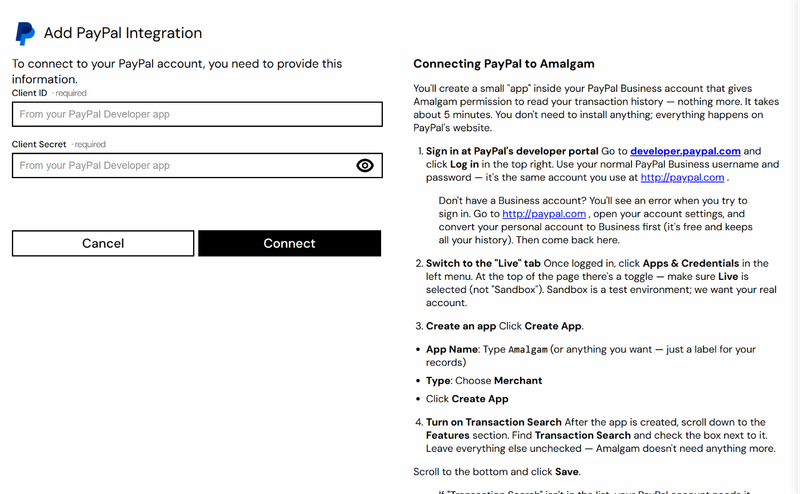
- Paste the Client ID and Client Secret and click Connect.

What You Can Pull
Section titled “What You Can Pull”PayPal is a read-only integration. The PayPal Transactions report (beta) lists transactions straight from the PayPal API. See Reports by Provider.
Troubleshooting
Section titled “Troubleshooting”- Connect fails: the most common cause is a Sandbox credential pasted into a Live connection. Check the toggle on the Apps & Credentials page and copy the credentials again.
- Rotating credentials: if PayPal makes you generate a new secret, open the integration in Amalgam, click Edit, and paste the new values. Your reports keep working.
- Revoking access: delete the app at developer.paypal.com. Amalgam stops being able to read your data within minutes.