
How to Connect Amalgam to Ramp
Connect Ramp to Amalgam to pull your transactions, bills and reimbursements into your spreadsheets, Claude or ChatGPT. Ramp connects by signing in to Ramp and approving the connection. There is nothing to configure on the Ramp side. The Ramp integration is in beta.
What You Need
Section titled “What You Need”- A Ramp login with the Admin or Business Owner role. Ramp only lets these roles connect apps that read company-wide data.
- An Amalgam account.
Connect Ramp
Section titled “Connect Ramp”- Log in at app.amalgam.me.
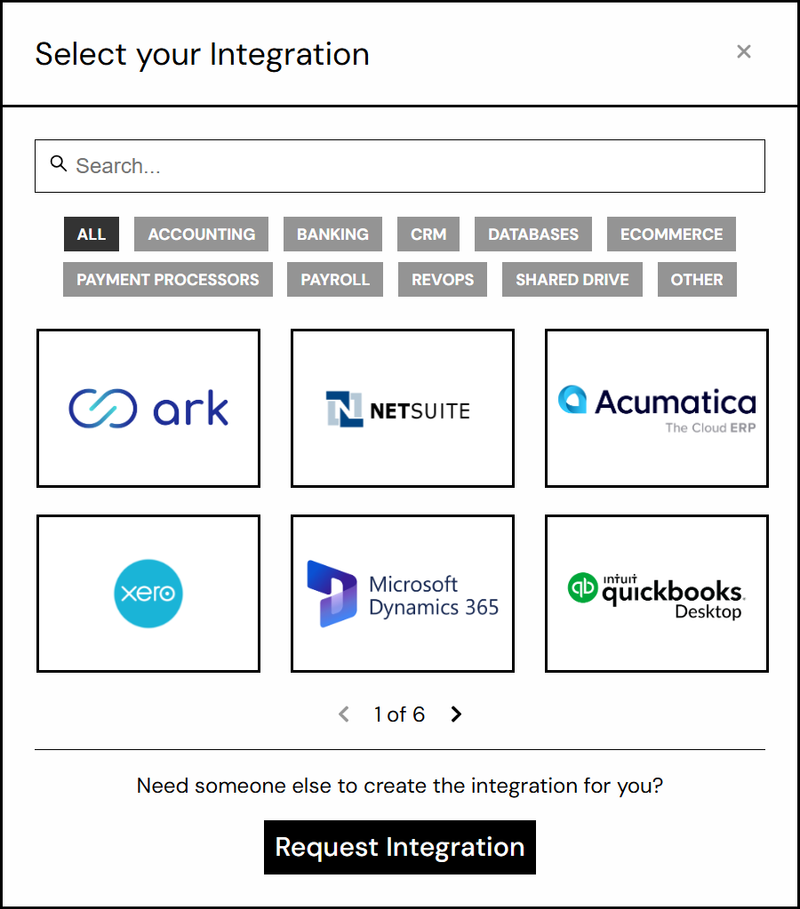
- Click New Integration and choose Ramp. You can type the name in the search box to find it.
- Amalgam sends you to Ramp’s sign-in page. Sign in with your Ramp login.
- Review the access request (transactions, bills, reimbursements, users and business details, all read-only) and approve it. Ramp sends you back to Amalgam with the integration ready to use.

What You Can Pull
Section titled “What You Can Pull”Ramp is a read-only integration. Reports include Transactions, AP Detail (bills) and Reimbursements, all in beta. See Reports by Provider.
Troubleshooting
Section titled “Troubleshooting”- “An admin must connect this app” or “Business not authorized to use this application”: your Ramp user is not an Admin or Business Owner. Ask one of them to connect.
- Disconnecting from the Ramp side: in Ramp open Settings, then Integrations, find Amalgam and disconnect it.
Ramp’s guide: Authorization.