
How to Connect Amalgam to Sage Intacct
Connect Sage Intacct to Amalgam to pull your general ledger, financial statements and aging reports into your spreadsheets, Claude or ChatGPT. Intacct connects with your company ID and the login of a user in that company. It also needs two settings on the Intacct side, which an Intacct administrator can do in a few minutes.
What You Need
Section titled “What You Need”- Your Intacct Company ID. It is on the Intacct login form. Inside Intacct it is under Company, then Setup, then Company, on the General information tab.
- An Intacct username and password with read access to the data you want. We recommend a dedicated Web Services user (see below) rather than a person’s login, so the integration does not break when that person changes their password or leaves.
- An Amalgam account.
Set Up the Intacct Side
Section titled “Set Up the Intacct Side”An Intacct company administrator does these steps once.
1. Subscribe to Web Services
Section titled “1. Subscribe to Web Services”- Go to Company, then Admin, then Subscriptions.
- Find Web Services and turn it on, then click Configure.
Sage’s guide: Subscribe to Web Services.
2. Authorize Amalgam’s Sender ID
Section titled “2. Authorize Amalgam’s Sender ID”- Go to Company, then Setup, then Configuration, then Company, and click Edit.
- Open the Security tab and find Web Services authorizations.
- Click Add, enter the Sender ID
amalgamMPP(case sensitive), set the status to Active, and save.
Sage’s guide: Web Services authorizations.
3. Create a Web Services User (Recommended)
Section titled “3. Create a Web Services User (Recommended)”- Go to Company, then Admin, then Users, roles, and groups, and click Add next to Web Services users.
- Enter a user ID such as
amalgam, a name, an email address, and set the status to Active. Choose a user type of Business. - Save. In the confirmation window choose Create, enter a password and verify it.
- Give the user a role, or user-based permissions, with read access to General Ledger, Accounts Payable, Accounts Receivable and the other modules you want to report on.
Web Services users cannot log in to the Intacct screens, and their passwords do not expire. Sage’s guide: Web Services-only users.
Connect Sage Intacct
Section titled “Connect Sage Intacct”- Log in at app.amalgam.me.
- Click New Integration and choose Sage Intacct. You can type the name in the search box to find it.
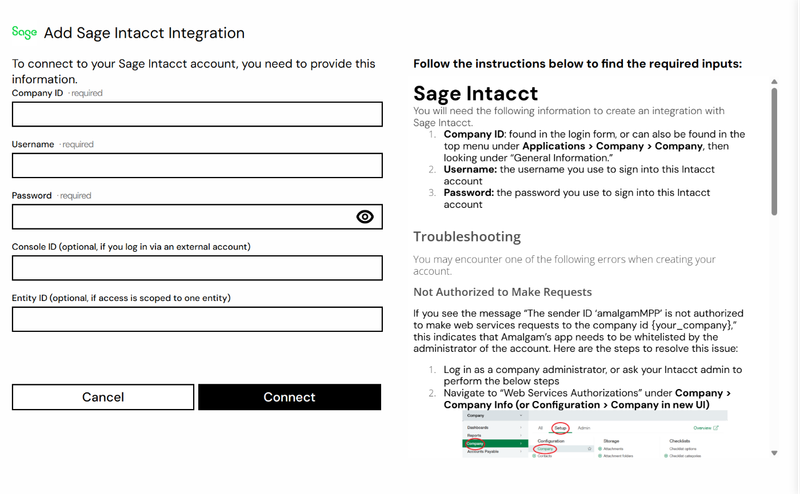
- Enter your Company ID, Username and Password.
- Console ID is only for accountants and multi-entity parents who log in through a Sage console and slide into client companies. Enter the console’s company ID in Console ID and the client company’s ID in Company ID.
- Entity ID is only for multi-entity companies where this user’s access is limited to one entity. The ID is in the entity picker at the top of the Intacct page, or under Company, then Setup, then Entities.
- Click Connect.

What You Can Pull
Section titled “What You Can Pull”Intacct is a read-only integration. Reports include General Ledger, Trial Balance, Trial Balances By Months, Balance Sheet, P&L, P&L by Department, Cash Flow Statement, Budget vs Actual, and AP and AR Aging in detail and summary. See Reports by Provider.
Troubleshooting
Section titled “Troubleshooting”- “The sender ID ‘amalgamMPP’ is not authorized to make web services requests”: step 2 above has not been done, or the Sender ID was typed with different capitalization. Check it reads
amalgamMPPand is Active. - “The company ID … is not subscribed to web services”: step 1 above has not been done. Also check the company ID in the message matches the one you entered.
- Reports fail after a password change: open the integration in Amalgam, click Edit, and enter the new password. A Web Services user avoids this.