
How to Connect Amalgam to Postgres
Connect a Postgres database to Amalgam to run SELECT queries against it from your spreadsheets, Claude or ChatGPT. Amalgam connects directly to the database with a username and password, so the database has to be reachable from the internet. The Postgres integration is in beta.
What You Need
Section titled “What You Need”- The database’s host, port (usually 5432) and database name.
- A database username and password. We recommend a dedicated read-only user for Amalgam (see below).
- The database must accept connections from the internet. If it only accepts connections from an allow-list of IP addresses, email support@amalgam.me for the addresses to add.
- An Amalgam account.
Create a Read-Only User
Section titled “Create a Read-Only User”Have your database administrator run these statements, replacing the database name and password:
CREATE ROLE amalgam_ro LOGIN PASSWORD 'choose-a-strong-password';GRANT CONNECT ON DATABASE mydb TO amalgam_ro;GRANT USAGE ON SCHEMA public TO amalgam_ro;GRANT SELECT ON ALL TABLES IN SCHEMA public TO amalgam_ro;ALTER DEFAULT PRIVILEGES IN SCHEMA public GRANT SELECT ON TABLES TO amalgam_ro;
Amalgam only reads, so this user cannot change anything in your database.
Open the Database to Amalgam
Section titled “Open the Database to Amalgam”- Self-hosted Postgres: set
listen_addresses = '*'andssl = oninpostgresql.conf(restart required), add ahostsslline for the new user inpg_hba.conf(reload), and open TCP port 5432 on the server’s firewall. - Amazon RDS: set Publicly accessible to Yes under Connectivity & security, and add an inbound rule for port 5432 to the instance’s security group. Amazon’s guide: Troubleshooting connections to your RDS for PostgreSQL instance.
- Supabase: click Connect on the project page and use the session pooler host and port, since the direct connection is IPv6 only. Supabase’s guide: Connecting to Postgres.
- Neon: projects are reachable by default. If you use IP Allow under Settings, then Networking, add Amalgam’s addresses. Neon’s guide: IP Allow.
Connect Postgres
Section titled “Connect Postgres”- Log in at app.amalgam.me.
- Click New Integration and choose Postgres. You can type the name in the search box to find it.
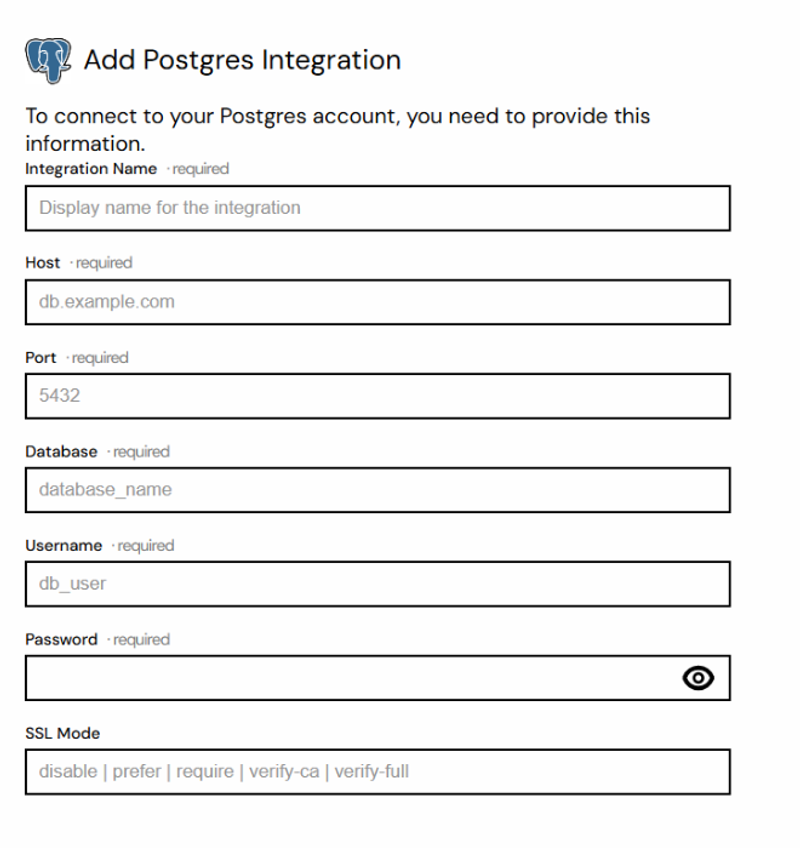
- Enter an Integration Name (the display name in Amalgam), then the Host, Port, Database, Username and Password.
- SSL Mode is optional.
requireencrypts the connection;verify-fullalso checks the server’s certificate and hostname;disableturns encryption off. Leave it blank to use the default (prefer). - Click Connect.

What You Can Pull
Section titled “What You Can Pull”The Select Query report (beta) runs a SELECT with the conditions you choose. See Reports by Provider.
Troubleshooting
Section titled “Troubleshooting”- Connection timed out: the database is not reachable from the internet. Check the firewall or security group, and the public-access setting on your cloud provider.
- Password authentication failed: check the username and password, and that
pg_hba.confallows that user from outside addresses. - SSL required: set SSL Mode to
require.