
How to Connect Amalgam to Google Ads
Connect Google Ads to Amalgam to pull your daily ad spend into your spreadsheets, Claude or ChatGPT. Google Ads connects by signing in with your Google account and approving the connection. Amalgam can see whichever Google Ads accounts your Google account can see.
What You Need
Section titled “What You Need”- A Google account with access to the Google Ads account, either directly or through a manager account. Read-only or Standard access is enough. Email-only access is not.
- An Amalgam account.
Connect Google Ads
Section titled “Connect Google Ads”- Log in at app.amalgam.me.
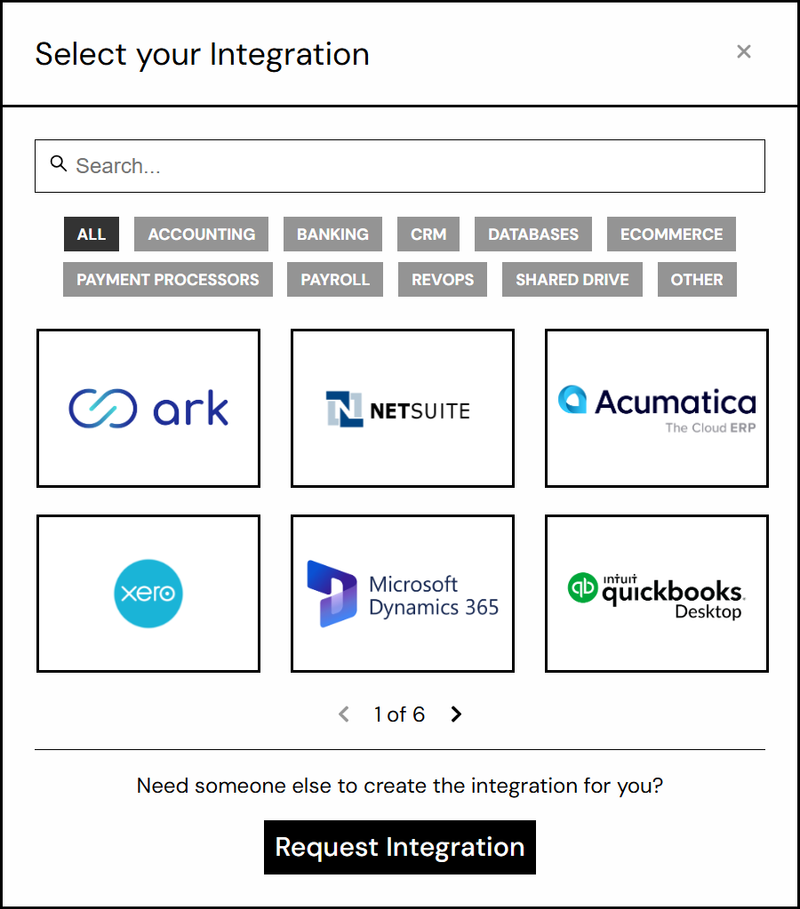
- Click New Integration and choose Google Ads. You can type the name in the search box to find it.
- Amalgam sends you to Google’s sign-in page. Pick the Google account that has Google Ads access, or sign in to it.
- Review the permissions Amalgam asks for and click Allow. Google sends you back to Amalgam with the integration ready to use.

What You Can Pull
Section titled “What You Can Pull”Google Ads is a read-only integration. The Daily Spend report (beta) gives spend per day per client. See Reports by Provider.
Troubleshooting
Section titled “Troubleshooting”- No accounts or an empty report: the Google account you picked does not have access to the Google Ads account. In Google Ads, an admin can add it under Admin, then Access and security.
- “Google Ads denied access to all requested customer accounts”: the Google account you connected with can’t read any of the Google Ads accounts in the report. If it can read some of them, the report skips the rest and shows the ones it can. Give that Google account access as above, or reconnect with a Google account that has it.
- Google blocks the app: your Google Workspace administrator restricts third-party apps. They can allow Amalgam in the Admin console under Security, then Access and data control, then API controls.
- Removing access from the Google side: go to myaccount.google.com/permissions, find Amalgam and remove it.
Google’s guide: Google Ads API access model.