
How Do I Install the Google Sheets Plugin?
Start by opening up any Google Sheet, or by typing sheet.new into your URL bar (a handy trick we use a lot).
Click on the Extensions menu and navigate to Get add-ons.
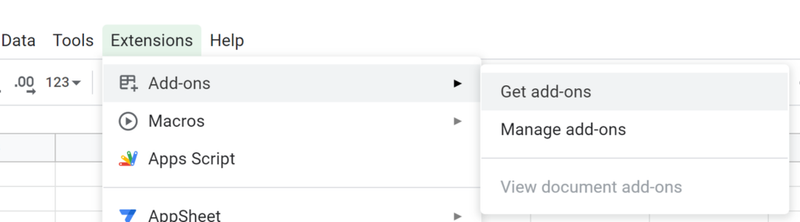
Search for “Amalgam” in the window that pops up and click on the resulting icon. When prompted, click on the “Install” button, and agree to the authentication questions that pop up.
Once installed, you should be able to access the plugin from the Extensionsmenu at any time, from any Google Sheet, so long as you are logged into the same Google account that enabled the app in the first place.
If you are a Gsuite admin, you can enable the plugin for all users in your domain by clicking Domain Install.
Installing for Your Entire Organization
Section titled “Installing for Your Entire Organization”If you are a Google Workspace administrator, you can install the plugin for everyone in your domain at once instead of each user installing it themselves.
- Sign in to the Admin Console at admin.google.com.
- Go to Apps, then Google Workspace Marketplace.
- Search for Amalgam and open it.
- Click Install, choose who in your organization should have access, and finish.
Users will then see Amalgam under the Extensions menu in any Google Sheet. You can change who has access, or uninstall it, from the same place.