
How Team Admins Can Manage Their Teams
The first user to create a team is its Team Admin, and any Team Admin can make others admins too. Team Admins get a Team > Settings section in the web app’s left menu with three pages: Information, Billing and Users.
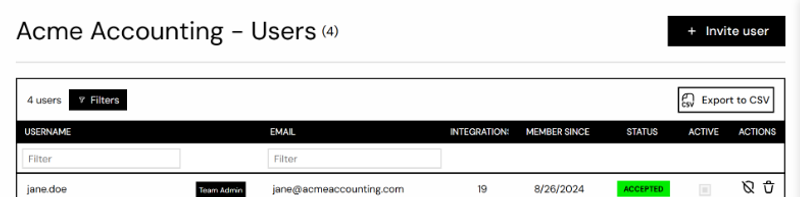
Users lists everyone on the team with their email, integrations, the date they joined, their status (Accepted, Pending Validation, Waiting Confirmation, or Expired for an invitation that lapsed), and whether they are active. Team Admins are labelled as such.
- Invite user sends an email invitation. On plans that do not include teammates the button is disabled, and the page tells you which plan to upgrade to.
- Make Team Admin and Revoke team admin are available for any accepted user. You cannot revoke your own admin role.
- Remove user takes a user off the team. They can be invited back at any time. Removing a user credits the unused part of their seat for the rest of the current billing period, so check here after someone leaves.
Information
Section titled “Information”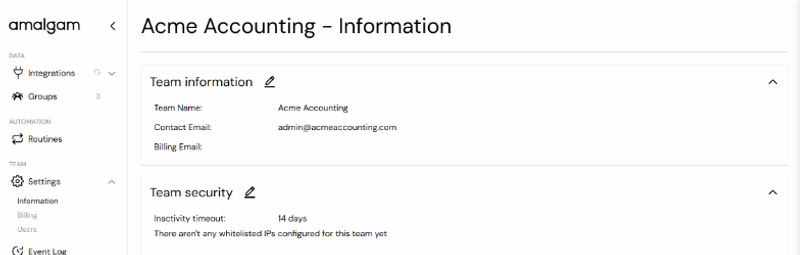
Team information holds the team name, the contact email, and the Billing Email, where receipts are sent.
Team security holds the team-wide security settings: an IP allow list, the inactivity timeout, and whether members sign in with Microsoft.
Billing
Section titled “Billing”Your plan, payment method, account ledger and cancellation are on the Billing page. See Billing and Plans.