How to Share Integrations with Other Users
If you have created an integration, you may want to make it available to other users. Doing so is simple from the web app.
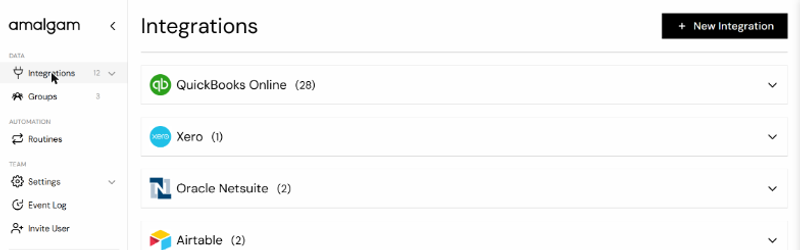
The Integrations page lists your integrations by system. Expand a system to see each integration with its name, status and a row of icons.
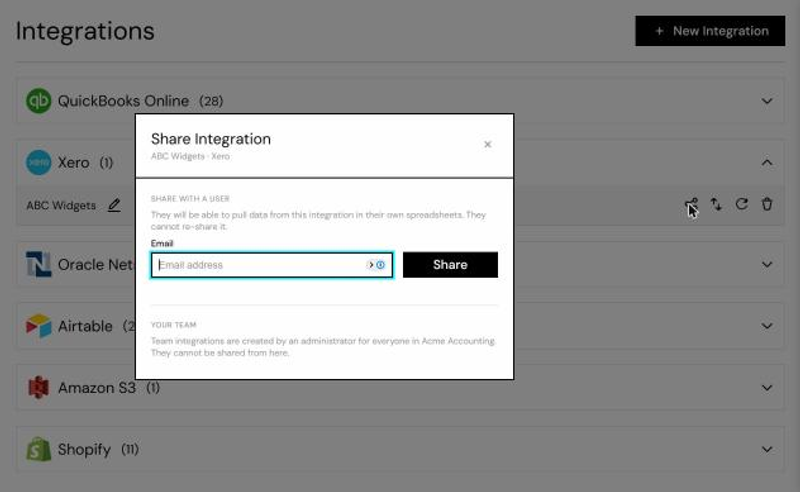
Click the share icon, the first of the icons on the right, to open Share Integration. Enter the email address of the user you want to share with and click Share. They will be able to pull data from the integration in their own spreadsheets, but cannot re-share it.
Important note: integrations can only be shared with the email address the other user signed up to Amalgam with. If a teammate uses two email addresses, the invitation only works for the one on their Amalgam account.
Integrations created by a Team Admin for the whole team are available to everyone already and cannot be shared from here.
Sharing Using Groups
Section titled “Sharing Using Groups”Groups are a more nuanced way of sharing access for teams with more complex team management needs. Open Groups in the left menu.
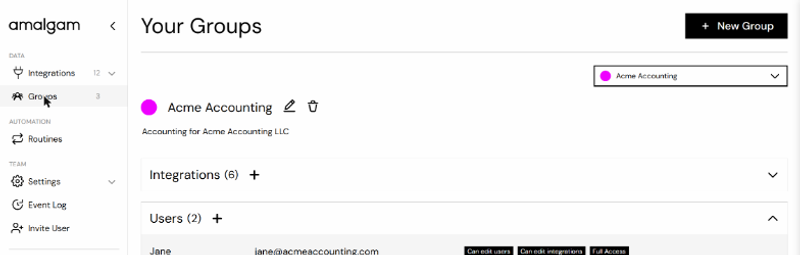
A group is what it sounds like: a grouping of integrations and users that work together. An example of a group might be a client of your firm. The group contains that client’s data sources (GL, bank, payroll, payments, and so on) and the users on your team who work on that client.
Creating a group requires only that the group gets a name. Once created, you can add integrations and users to the group. Each user in the group has access to all of the integrations in the group, at the permission level defined for them.
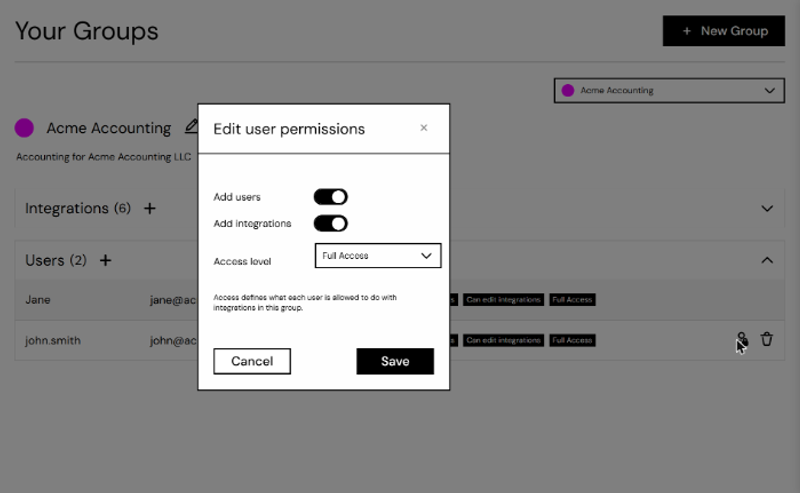
To edit a user’s permissions, click the person icon next to their name. You can choose whether they may add users and add integrations to the group, and set their access level for the integrations inside it.